The PING command allows you test whether a remote device is accessible on the internet (or your local network).
PING is available on Windows and Mac computers - and either natively or via an app for other devices.
You can PING an IP address, or a hostname (which will return its IP address).
Windows
Open Command Prompt from the Start menu - type cmd and press Enter.
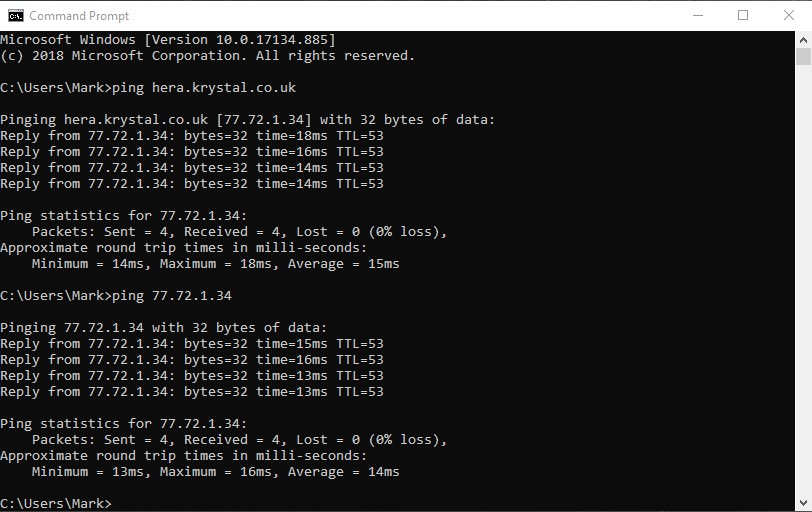
The following screenshot shows a PING to a hostname, in this case hera.krystal.co.uk - and then a second PING to Hera's IP address: ping hera.krystal.co.uk followed by ping 77.72.1.34In both these cases you can see the Reply from lines - which detail the IP replying, the size in bytes of the PING reply, the time to reply and the Time To Live (TTL)
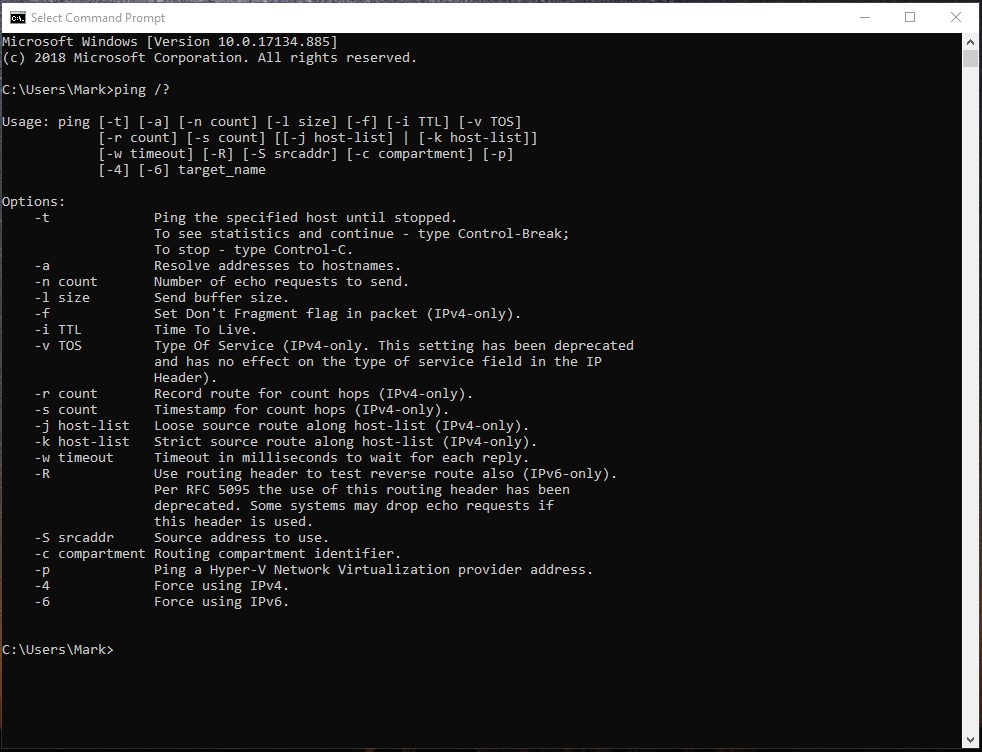
A full list of PING options can be seen by typing ping /?
Apple macOS
Open Terminal. Go to Applications > Utilities > Terminal, or press Cmd + Space and start typing "Terminal".
Run the ping. Type the command followed by the hostname or IP address you want to test, and press Enter: ping hera.krystal.co.uk
Stop it when you have seen enough. Unlike Windows, macOS carries on pinging until you tell it to stop - press Ctrl + C. That also prints the summary: how many packets were sent, how many came back, and the percentage lost.
If you would rather send a set number and have it stop on its own, use -c: ping -c 10 hera.krystal.co.uk
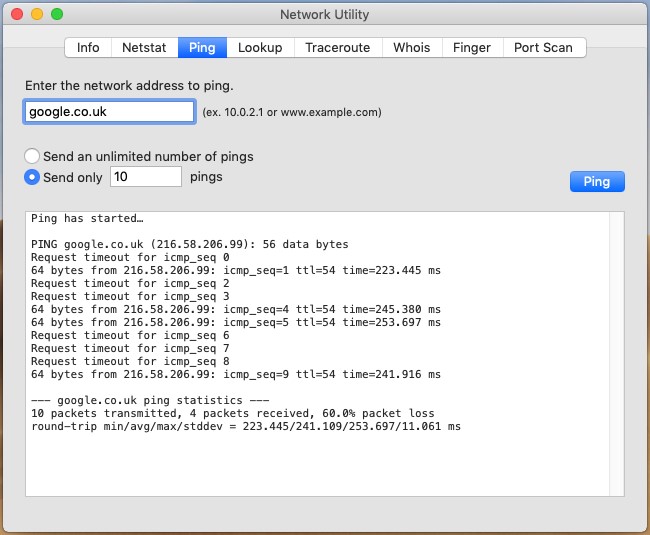
Each result line shows the packet size, the IP address that replied, the Internet Control Message Protocol (ICMP) sequence number (a running count of the pings sent), the Time To Live (TTL) and the reply time.
What can you tell from a PING result
Incorrect hostname
The message you see will depend on whether you are using a Mac or Windows PC - but it'll be something like: ping: cannot resolve <hostname>: Unknown host or Ping request could not find host here.krystal.co.uk. Please check the name and try again. This is telling you that the hostname you've typed isn't being resolved by DNS to an IP address. Check the hostname and try again. It may also indicate that you can't access a DNS server - in which case you may have a local internet connection issue - try a PING to a different internet device, or using a browser to ensure you can access other internet sites.
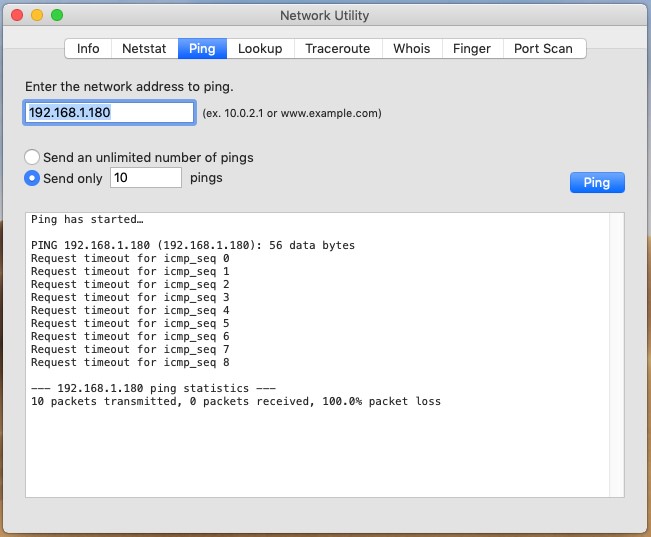
Request timeoutGetting consistent request timeout responses can mean one of a few things: - the device you are trying to PING is shutdown or unreachable - the device you are trying to PING, or firewall in front of it are dropping the Internet Control Message Protocol (ICMP) network packets that make PING work - you have no internet connection - you can rule this out by sending a test PING to another system or by using a browser to ensure you can access other internet sites. If you've confirmed you have internet access then you might try using TRACEROUTE to further investigate why you can't reach the remote device.
Intermittent/laggy PINGGetting intermittent PING responses - or high response times can mean one of a few things: - the device you are trying to PING is under high load and unable to respond consistently - a section of the network between you and the device is under high load - there may be an network issue between you and the device Start by trying to rule out if this is device specific - PING a different device or site on the internet - to see if that responds quickly. If so it's likely your systems and internet connection are working ok and this is a remote system/network problem specific to the device you were trying to connect to. If other unrelated devices give similar results then this may be an issue with your device or internet connection. Try resetting your local infrastructure - modem/router, and other network devices (e.g. WiFi repeaters/access points, network switches, homeplug extenders) along with your device. You can perform further investigation with TRACEROUTE to attempt to identify where between you and the remote device/site the connection slow down is occurring.
If you are reporting the problem to us, ping your own home server rather than the example used above - see how to find your home server name. A ping to a different machine tells us nothing about the route to yours. Copy the whole output, including the command you ran and the summary line at the end, and paste it into a ticket from your Client Area; a screenshot of a few lines usually is not enough to work from.