Managing WHM Feature Lists

WebHost Manager (WHM) is the central control panel from which you manage your reseller hosting services with us.
WHM allows you to manage your client cPanel accounts and control all elements of your hosting service. Your WHM login details are issued in your Welcome e-mail when your new reseller account is setup.
The first step in setting up your new hosting service is to create a feature list for your clients to use with their hosting packages. A feature list allows you to select which cPanel features you want your clients to be able to access - these are the icons they will see within their cPanel.
You can create a variety of feature lists and there is no individual cap on how many you can create.
Before you create your own, it is worth knowing that cPanel ships with three feature lists already in place:
- default - used by any package that does not specify a different list. Take care editing this one: disabling a feature here removes it for every client using the default list, which is easy to do by accident when you meant to change a single package.
- disabled - everything switched off.
- Mail Only - mail features only, useful if you are selling mailboxes rather than hosting.
Creating your own list rather than editing default is almost always the safer choice.
Creating a Feature List
WHM >> Packages >> Feature Manager
- Login to WHM
- Within the Packages section, click Feature Manager
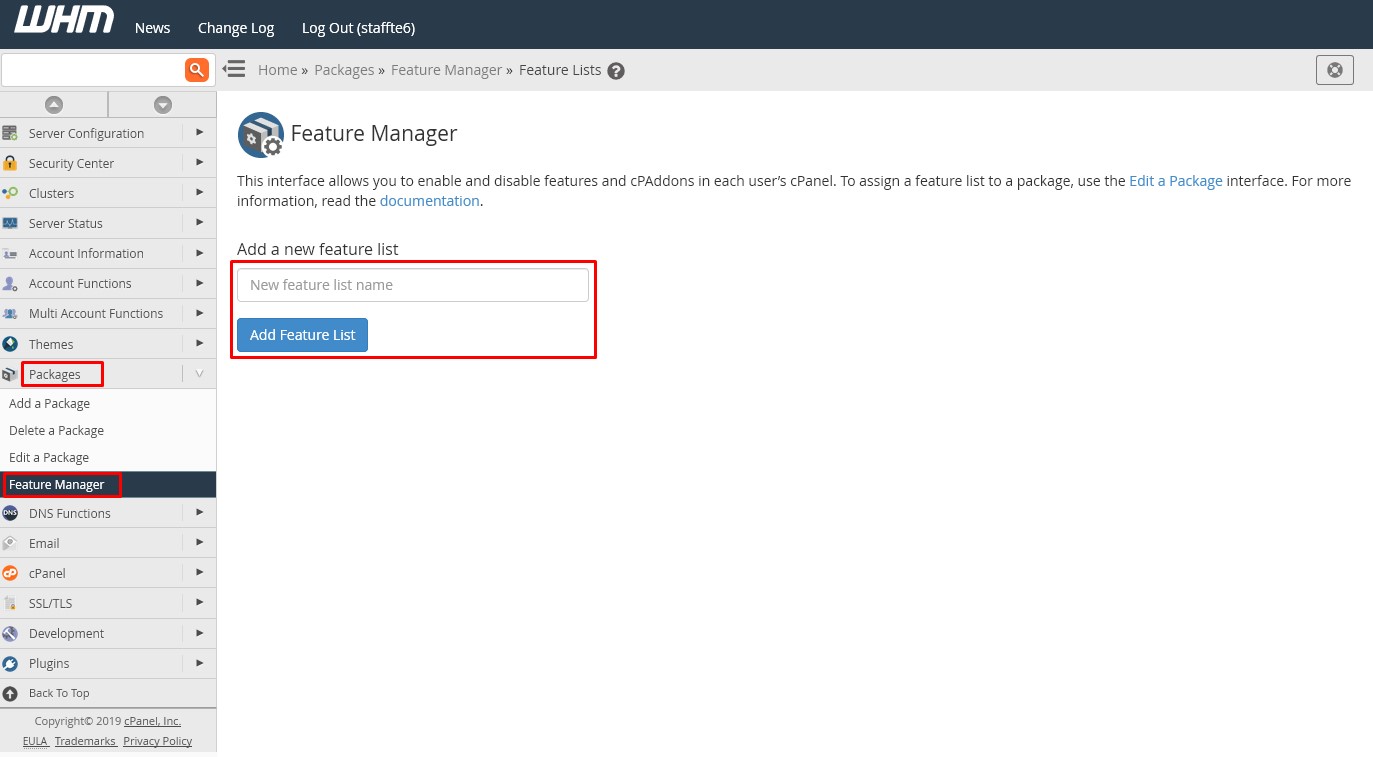
- Give your new feature list a name and click Add Feature List
- Next, you can define the specific features within cPanel and additional plug-ins you want enabled on this feature list to suit the package you are offering.
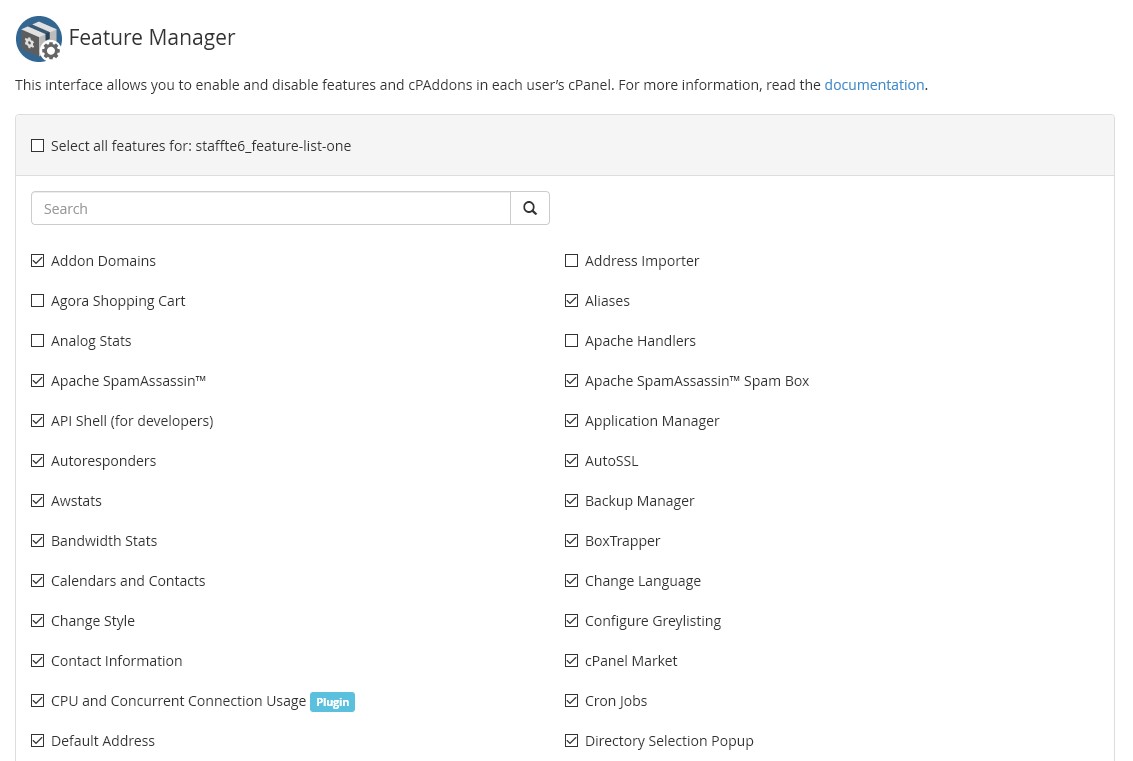
- Once you've selected all the features you require, scroll to the end of the list and click Save. Your feature list will be created.
Next Step
Assign this feature list to a WHM Package.
Editing or Deleting a Feature List
WHM >> Packages >> Feature Manager
- Login to WHM
- Within the Packages section, click Feature Manager
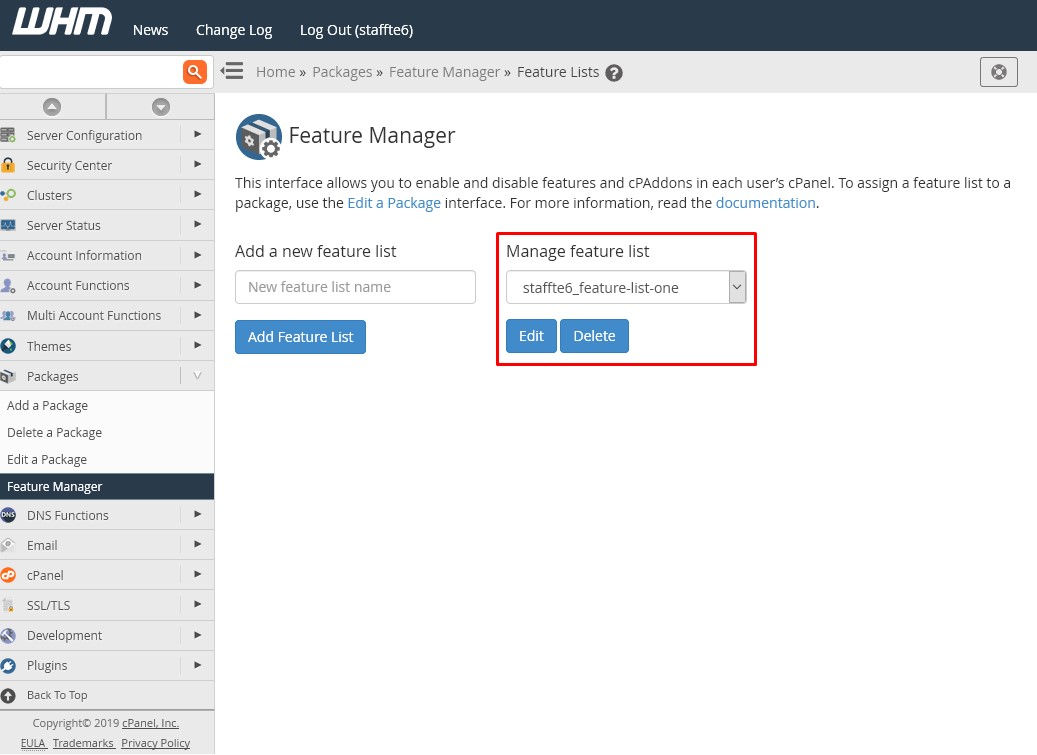
- Select the feature list you'd like to work with from the list and then click either Edit or Delete.
