How to register a .eco domain

.eco domains are a great choice if your business or project is committed to positive environmental action. This guide walks you through registering a .eco domain with Krystal and completing the required activation process with the .eco registry.
Registering your .eco domain
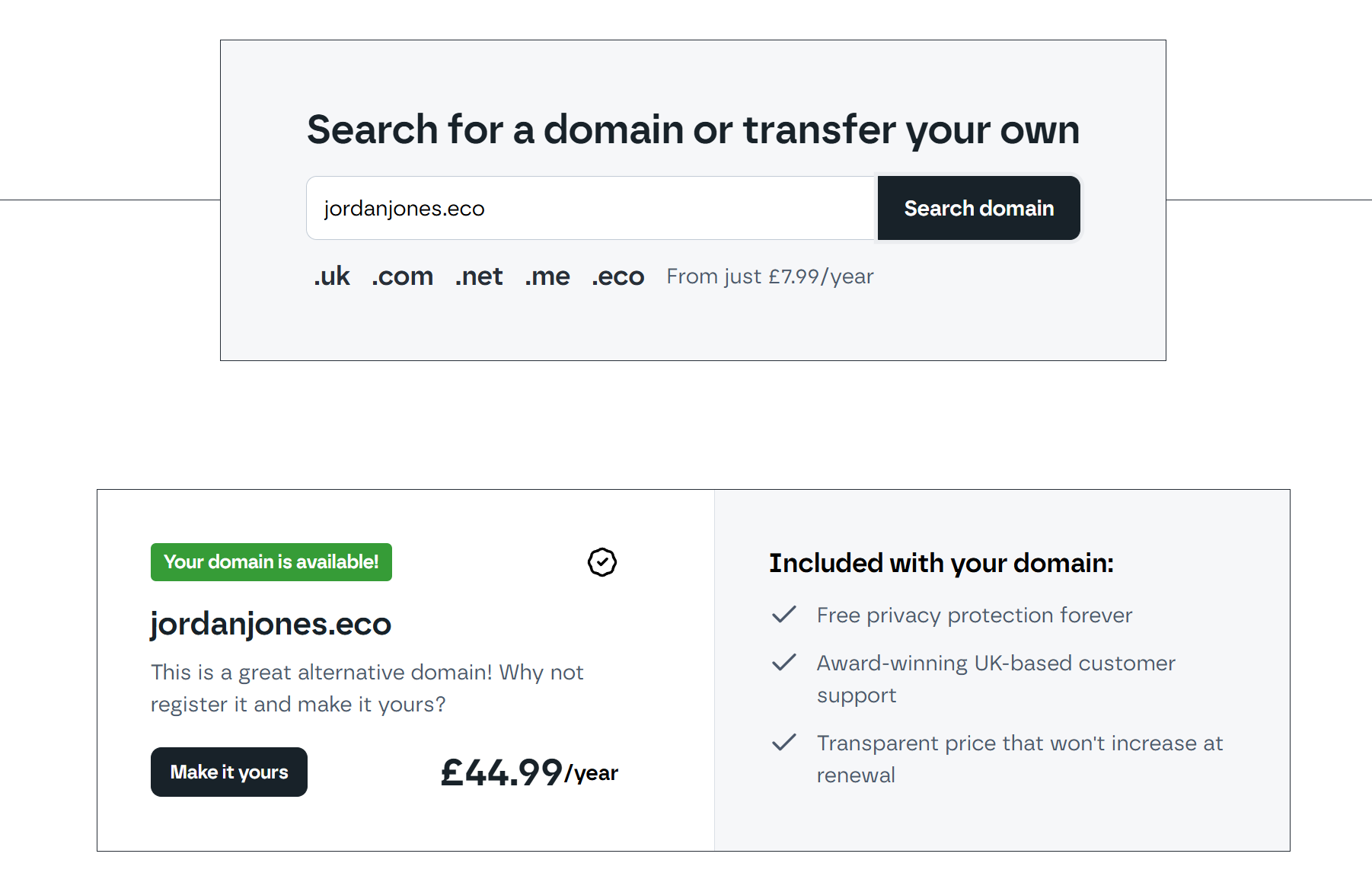
- Head to https://krystal.io/domains and search for your desired .eco domain name.
- Once you've found the domain you want, click Make it yours.
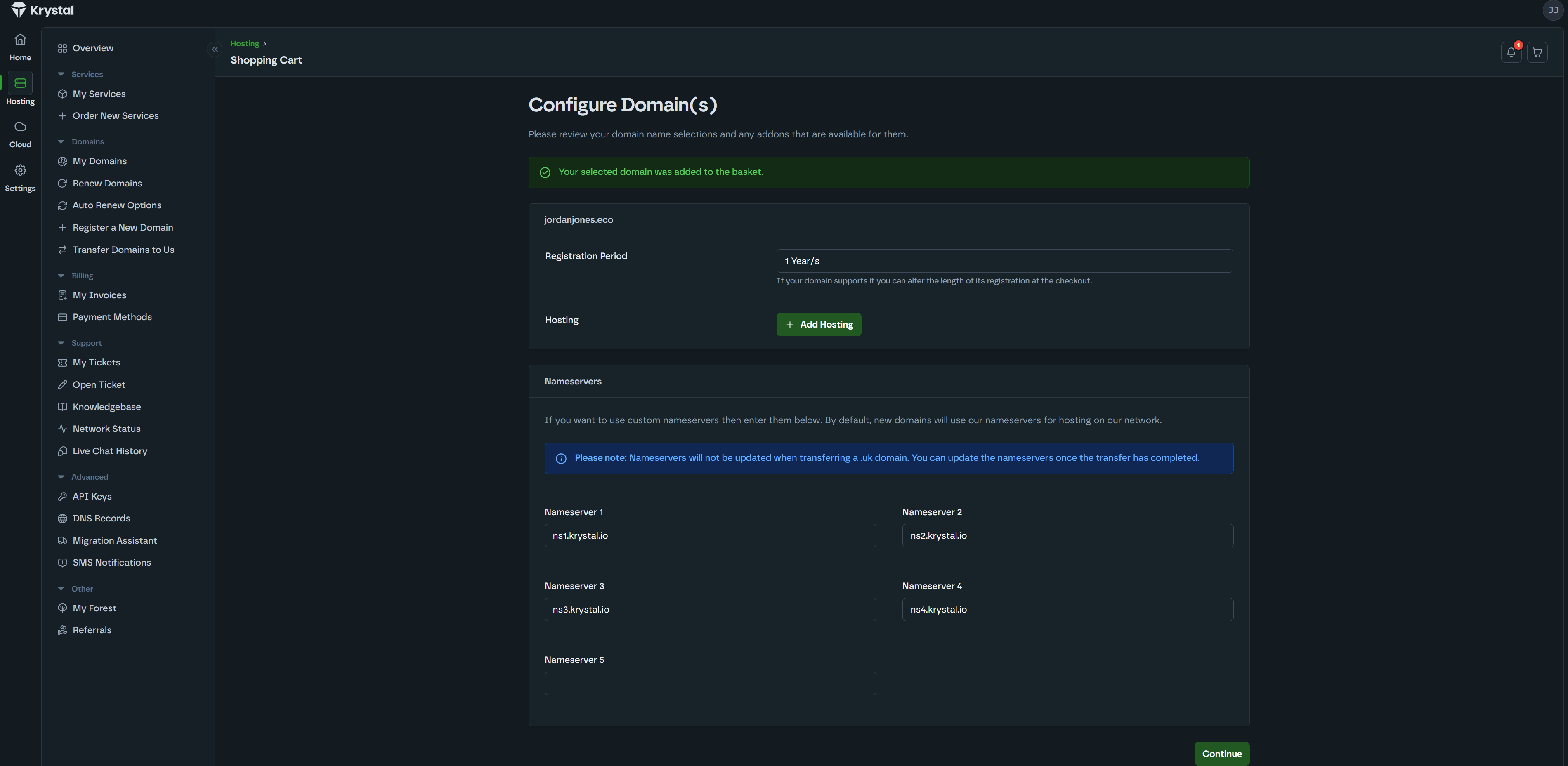
- On the configuration screen, enter the nameservers you'd like to use, or leave them as they are to use our default nameservers. Click Continue.
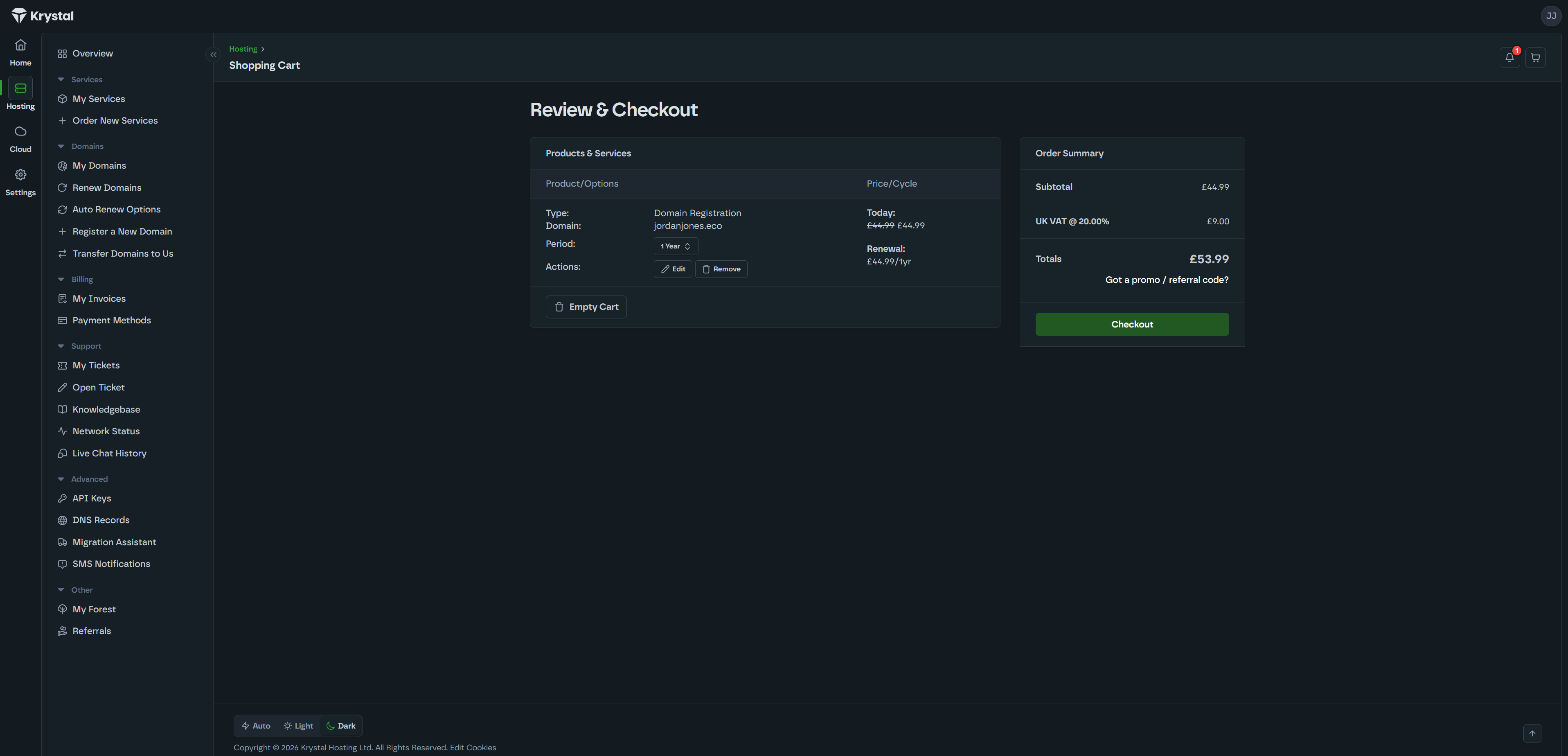
- Review your order on the summary screen to make sure everything looks correct, then click Checkout.
- Check that your billing details are accurate. You can also update the Domain Registrant Information on this page if needed.
- Select your preferred payment method. You can find details of all the payment methods we accept here.
- Read through the linked terms of service and tick the box to confirm you've done so.
- Click Complete Order.
- Once your order is placed and payment is confirmed, you'll receive four emails: an order confirmation, a payment confirmation, domain registration confirmation, and a domain activation email.
Activating your .eco profile
Once you've received your domain activation email, follow the steps below to activate your .eco profile.
Your .eco domain will not work until you complete this.
Every .eco domain is registered on Server Hold, which means it does not resolve at all - your website and email will not work, however your nameservers are set. It only comes off hold once you have completed the Eco Profile below, so do this before you spend time wondering why the domain appears dead.
A domain left on Server Hold for more than twelve months may be cancelled by the registry, so it is worth doing promptly rather than putting it aside.
Every .eco domain is registered on Server Hold, which means it does not resolve at all - your website and email will not work, however your nameservers are set. It only comes off hold once you have completed the Eco Profile below, so do this before you spend time wondering why the domain appears dead.
A domain left on Server Hold for more than twelve months may be cancelled by the registry, so it is worth doing promptly rather than putting it aside.
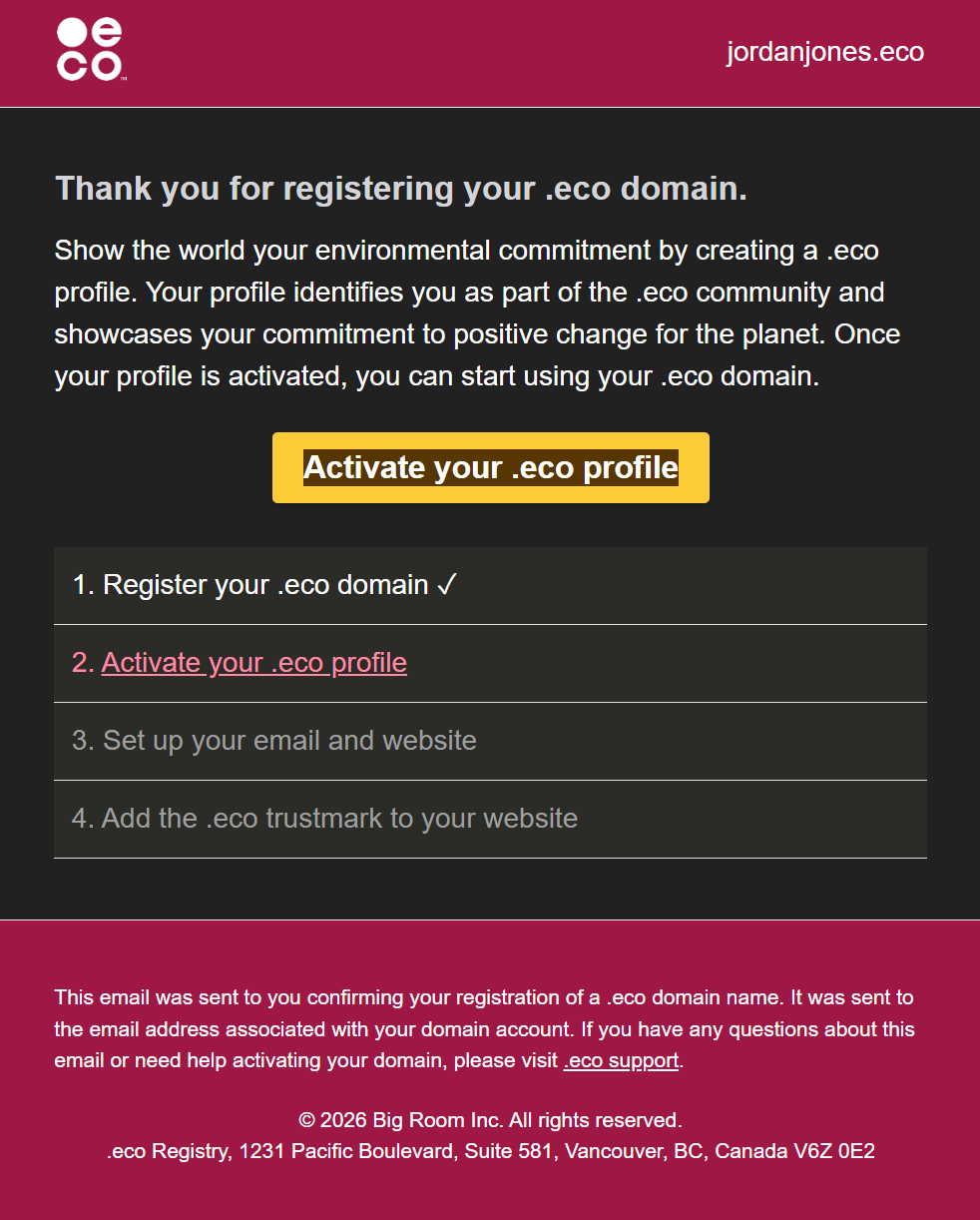
- You should have now received an activation email from the .eco registry (sent from activate@profiles.eco) to the email address you entered under Domain Registrant Information during checkout. Check your Spam or Junk folder if you don't see it in your inbox. If the activation email doesn't arrive, visit https://profiles.eco/user/resend-email, enter your domain name, and click Resend activation email.Need to update the email address? See our guide on how to check and update your domain's contact details.
- In the activation email, click Activate your .eco profile. You'll be taken to the profiles.eco website.
- Create your .eco account by entering your full name, email address, and a password.
- You'll then be guided through a short form to set up your .eco profile. Here's what each section covers:
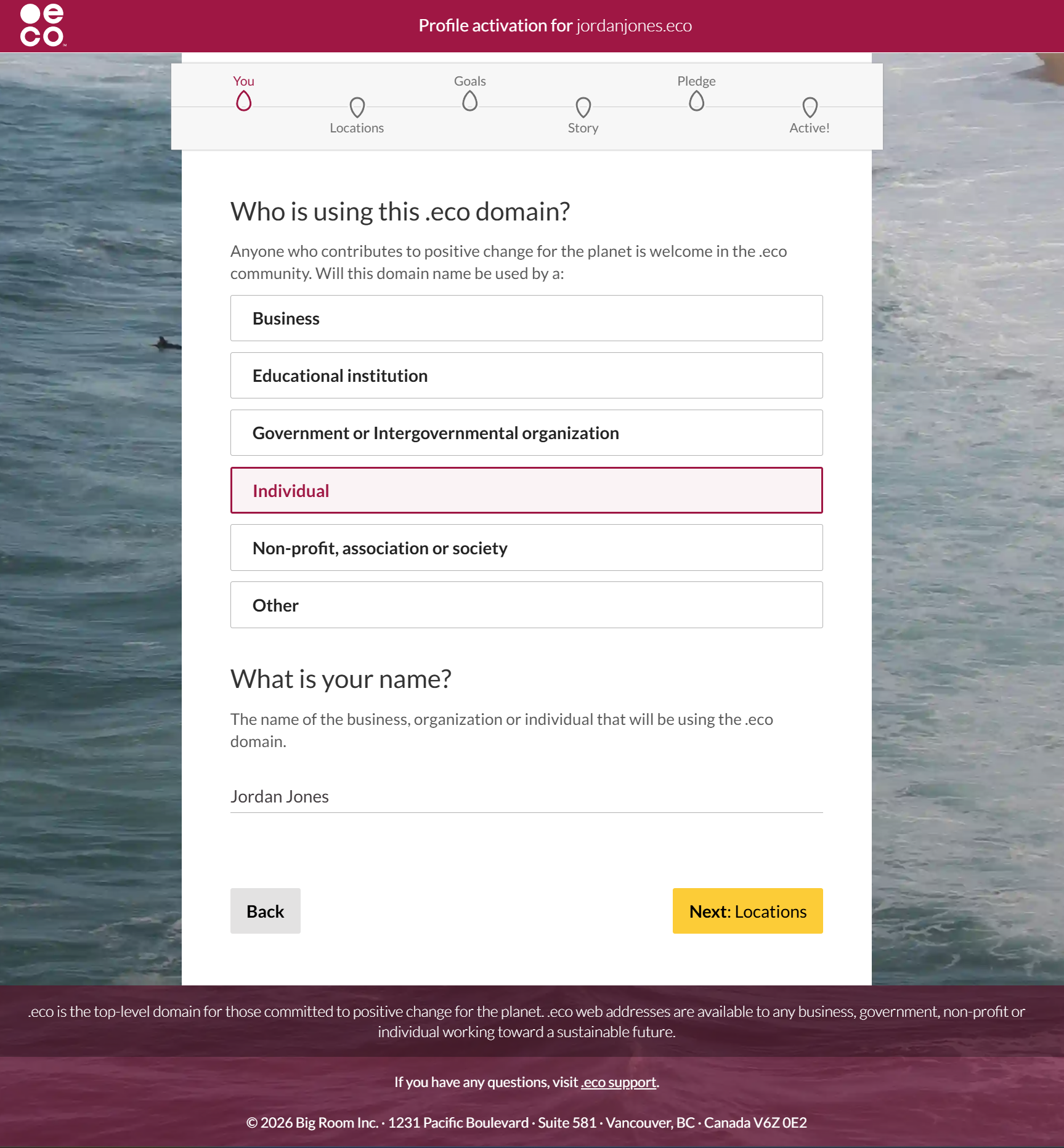
- About you - Select who is using this .eco domain (individual, business, etc.) and enter your name or business name.
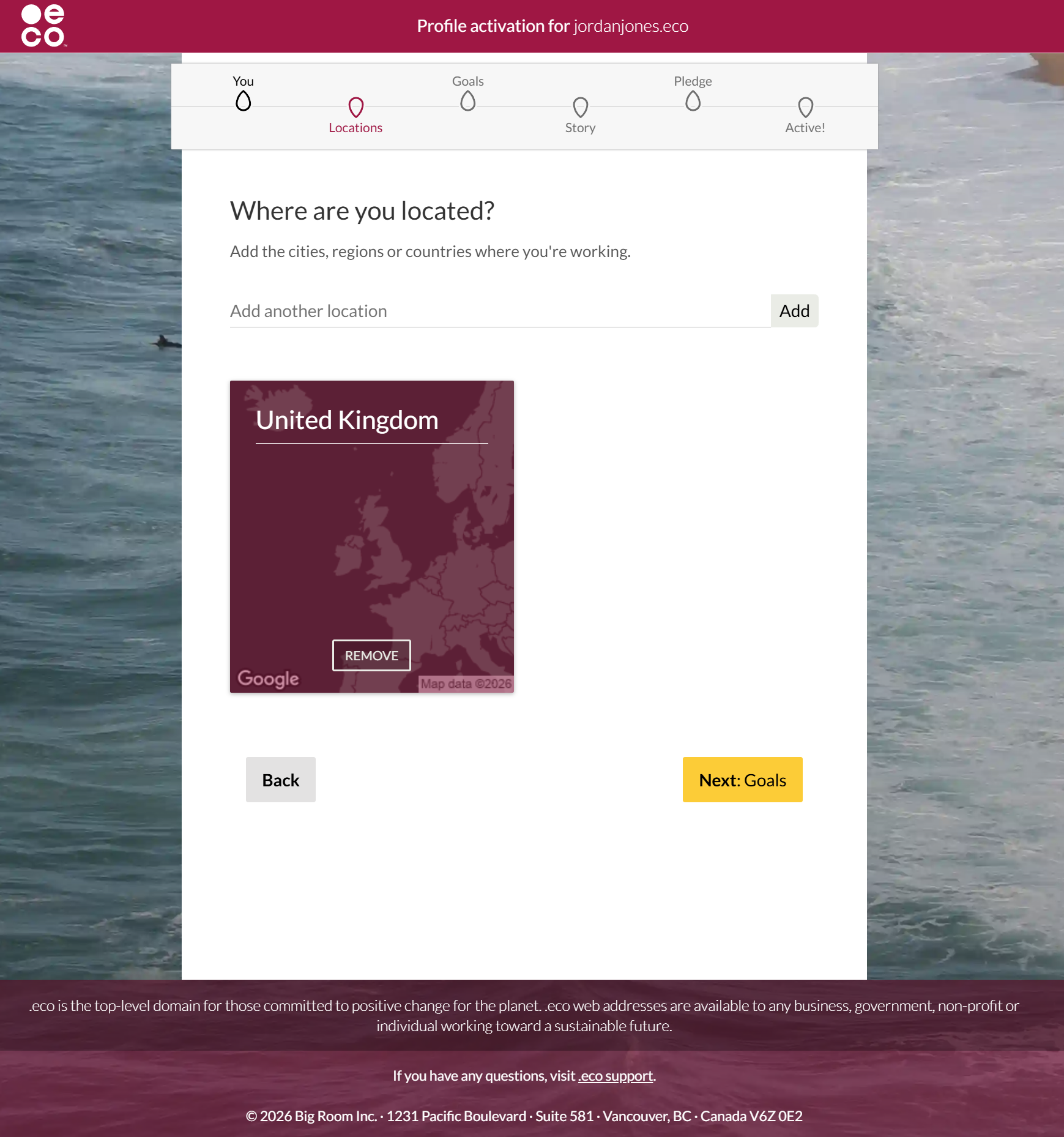
- Locations - Add the cities, regions, or countries where you're based or working.
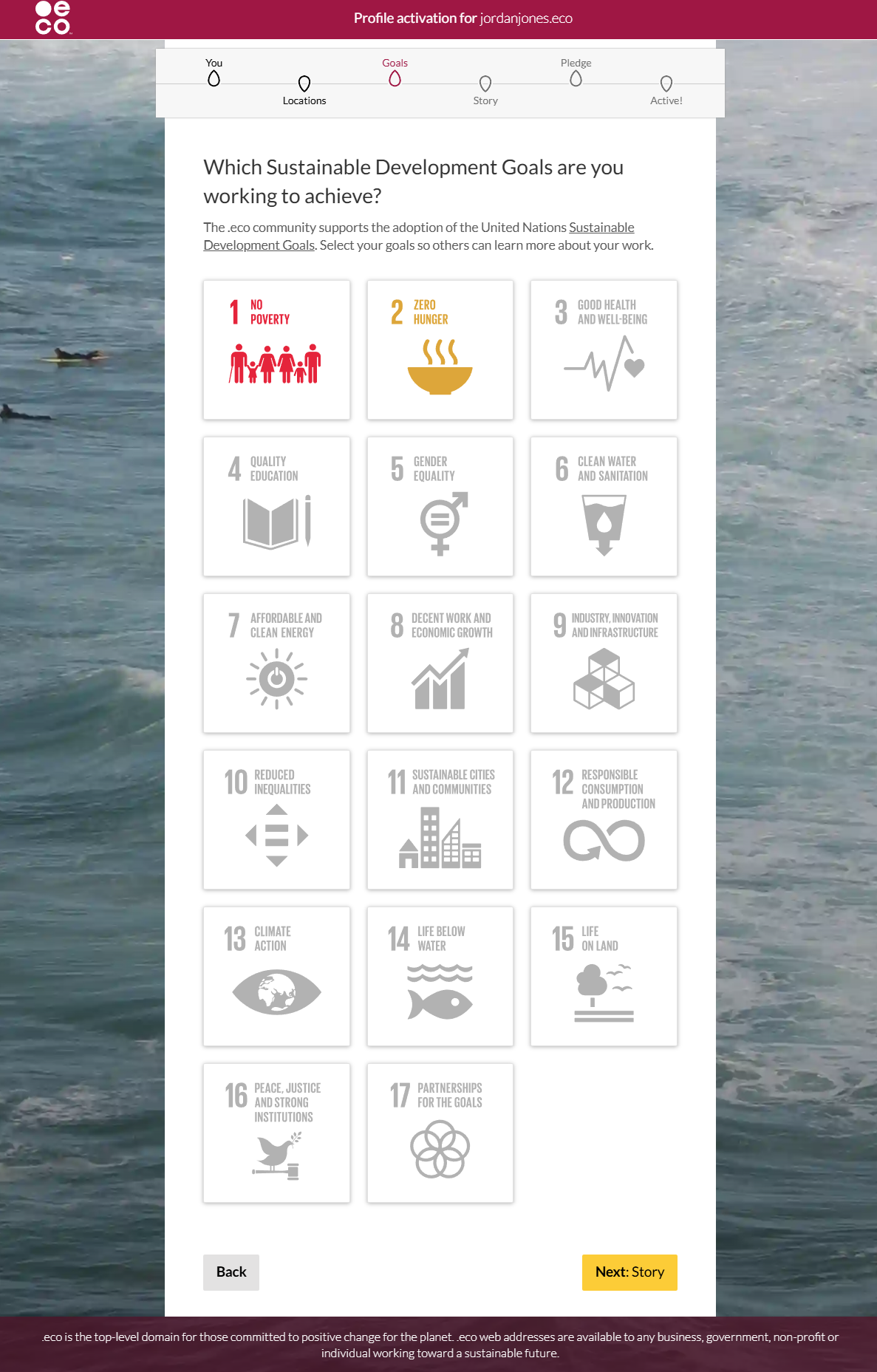
- Goals - Select the United Nations Sustainable Development Goals that apply to your work. You can find more information about each goal at https://sdgs.un.org/goals.
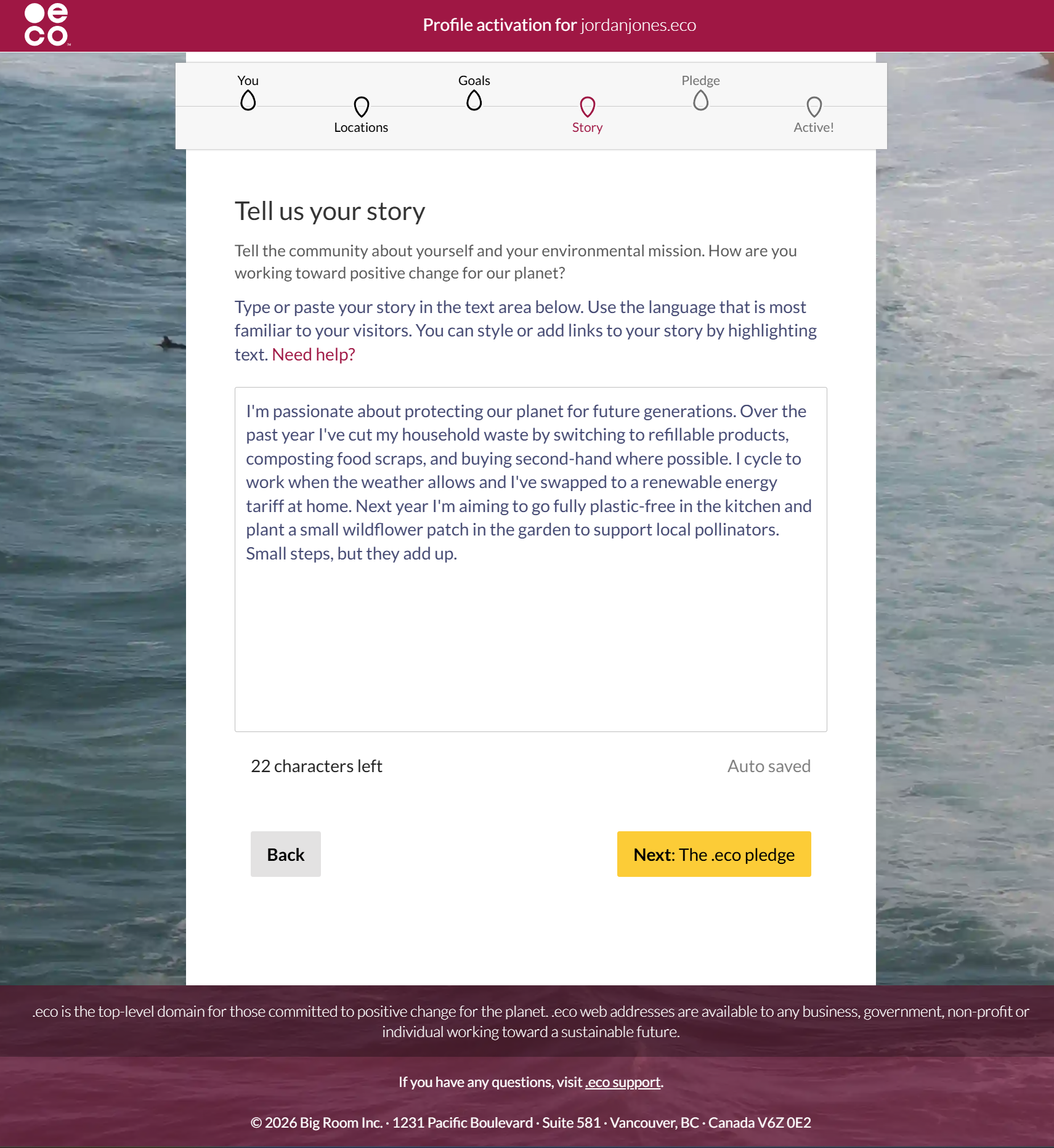
- Story - Tell the .eco community about yourself and your environmental mission. Describe how you're working toward positive change for the planet (up to 500 characters).
- Pledge - confirm you are eligible to hold a .eco domain, and accept the .eco pledge: "I/we pledge to support positive change for the planet and to be honest when sharing information on their environmental actions." Both of these are required by the registry - the profile is not complete, and your domain stays on hold, until they are done.
- Once you've completed the form, your .eco profile will be activated and you'll receive a confirmation email. You can update your profile at any time by visiting https://profiles.eco/.
- About you - Select who is using this .eco domain (individual, business, etc.) and enter your name or business name.
Things to note
- You can keep your WHOIS privacy on. The .eco registry sends the activation email to the private forwarding address your registration uses, and it reaches you from there. Do be aware it can take up to a couple of hours to arrive with privacy enabled, rather than turning up straight away.
- If it still hasn't arrived after that, use the resend page first. If that doesn't work either, forwarding may be the problem - email us and we can turn privacy off temporarily, which prompts the registry to resend to your real address. We'll put it back on once you're activated.
- If your chosen domain isn't available, is classed as a premium domain, or there's any other issue with your order, our support team will get in touch to let you know and discuss next steps.
- The activation email will come from activate@profiles.eco and may land in your Spam or Junk folder.
